Compare links side by side
How to use the Compare tab to see all your smart links in one sortable table and spot which link or source converts best.
Available on:Pro · Agency · Scale
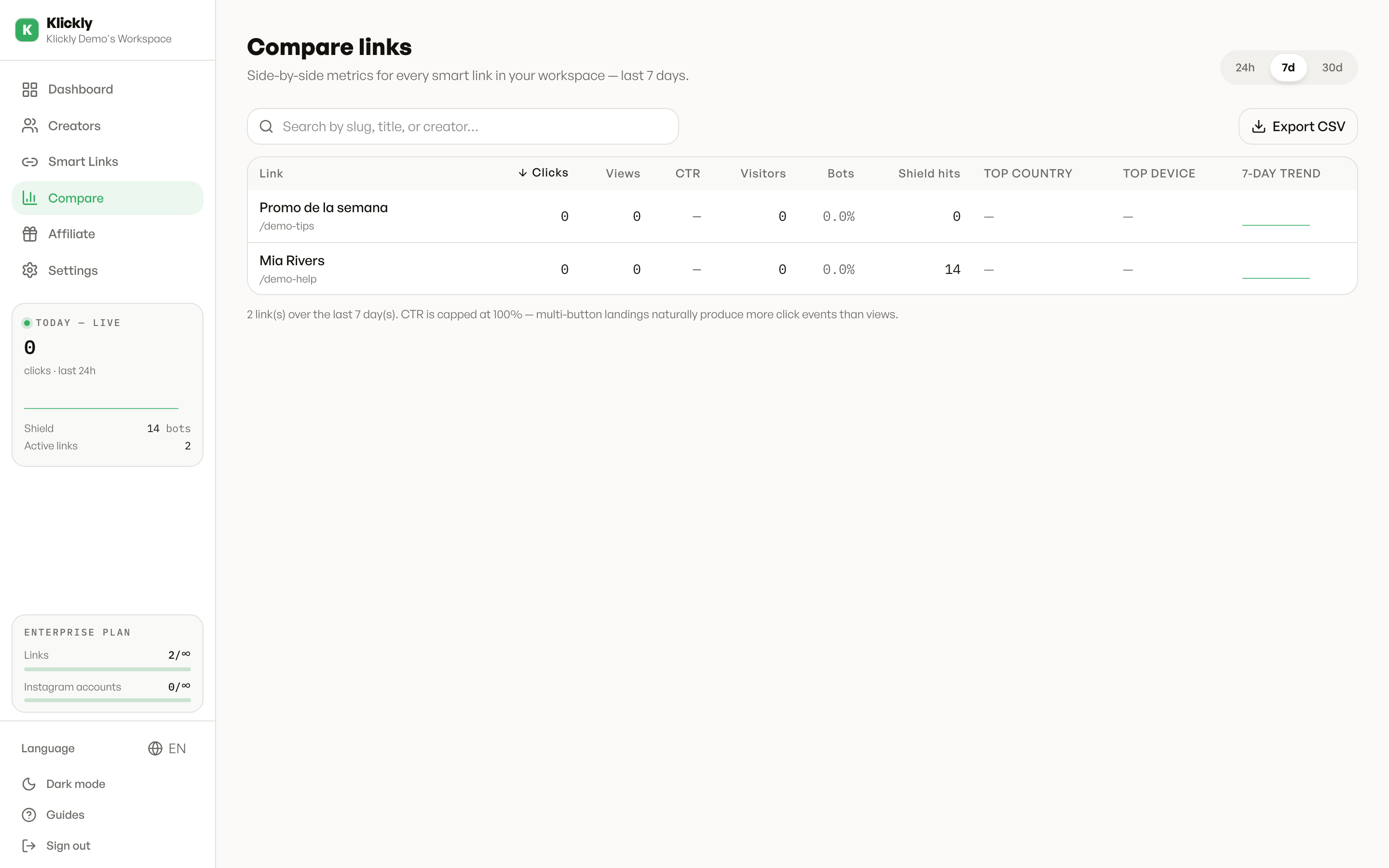
The Compare tab puts every smart link in your workspace into one side-by-side table, so instead of opening each link one at a time you can see at a glance which one is pulling the most clicks, the cleanest traffic, and the best click-through. It is built for moments when you have several links running across different bios, stories, or platforms and you want to know which one is actually working.
- 1
Open the Compare tab
In the left menu go to Sidebar → Compare. It sits between Smart Links and Affiliate. This loads the comparison table for every active and inactive link in your workspace.
- 2
Pick your time window
Use the date range buttons at the top right (24h, 7d, 30d). The page opens on the last 7 days by default. Every number in the table updates to match the window you choose.
- 3
Read the columns
Each row is one link. You get Clicks, Views, CTR (click-through rate, capped at 100%), Visitors (unique people, not raw clicks), Bots (the share of traffic flagged as bot — it turns amber when it climbs past 30%), Shield hits, Top country, Top device, and a small 7-day trend line so you can see if a link is rising or fading.
- 4
Sort to find your best (or worst) link
Click any column header — Clicks, Views, CTR, Visitors, Bots, or Shield hits — to sort the whole table by it. Click the same header again to flip between high-to-low and low-to-high. The table opens sorted by Clicks, highest first.
- 5
Search and export
Use the search box to filter by slug, title, or creator name when you have a lot of links. Click Export CSV to download the full table as a spreadsheet file (named klickly-compare-…csv) for your own records or reports.
Tip
To compare sources fairly, give each link a clear title or slug (for example bio-link, story-swipe, telegram). Then sort by CTR or Visitors instead of raw Clicks — a link with fewer but more genuine visitors often converts better than one inflated by bot traffic.
What the Bots and Shield columns tell you
A high Bots percentage means a lot of the traffic on that link was automated, not real people — useful for spotting where scrapers are hitting you. Shield hits counts how many times Shield blocked a suspected bot from seeing your real destination. Together they show how clean each link's audience really is, beyond the headline click count.
Good to know
The comparison only becomes useful once you have at least two smart links — with one link there is nothing to compare against, and the table will tell you so. If you manage links under a creator role, you will only see the links for the creators assigned to you. Click any link's title in the table to jump straight to its detailed analytics page.