Two-factor authentication (2FA)
Add a second sign-in step with an authenticator app so a stolen password alone can't get into your account.
Two-factor authentication (2FA) protects your Klickly account by asking for a second proof of identity when you log in: a 6-digit code from an authenticator app on your phone. Even if someone learns your password, they can't sign in without that code. It's optional, free on every plan, and takes about two minutes to set up.
- 1
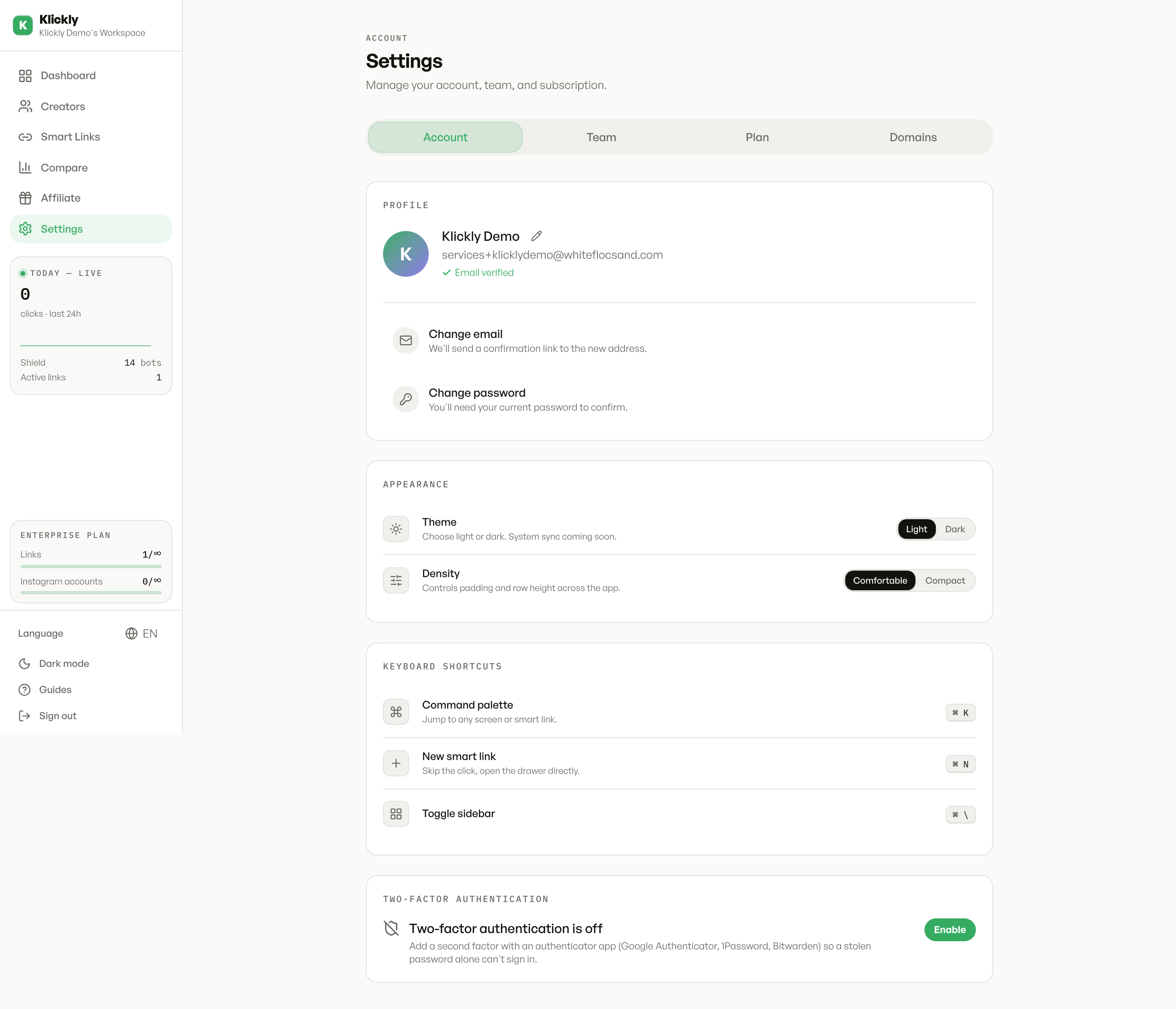
Open the 2FA settings
Go to Sidebar → Settings → Account tab and scroll to the "Two-factor authentication" section. Click Enable.
- 2
Scan the QR code with an authenticator app
A window shows a QR code. Open an authenticator app (Google Authenticator, 1Password, Authy, or Bitwarden) and scan it. If you can't scan, the same screen shows a code you can type into the app by hand.
- 3
Confirm with a 6-digit code
Your app now shows a 6-digit code that changes every 30 seconds. Type the current one into the field and click Confirm to switch 2FA on.
- 4
Save your recovery codes
Klickly then shows 8 one-time recovery codes. Use "Copy all" and store them somewhere safe (a password manager, not the same phone as your authenticator). These are shown only once and are your way back in if you lose your phone.
What happens next time you sign in
After 2FA is on, every login asks for your password first, then sends you to a second screen for the 6-digit code from your app. If you don't have your phone, click "Use a recovery code instead" and enter one of the codes you saved. Each recovery code works only once.
Tip
Save your recovery codes the moment they appear — they cannot be shown again. The Account tab tells you how many you have left (for example "5/8 recovery codes left"); if you're running low, the safest reset is to disable 2FA and enable it again to get a fresh set.
Turning 2FA off
In Sidebar → Settings → Account → Two-factor authentication, click Disable. To confirm it's really you, Klickly asks for either your account password or a current 6-digit code from your app.
Good to know
2FA only protects sign-in to your Klickly account — it's separate from your Instagram or other connected accounts, which have their own security settings. Keep your authenticator app and recovery codes safe: if you lose both your phone and all your codes, recovering access requires contacting support.