Tracking pixels (GA4 & Meta Pixel)
Add your own Google Analytics 4 or Meta (Facebook) Pixel to a landing so visits and conversions show up in your own analytics tools.
Available on:Pro · Agency · Scale
Tracking pixels let you measure your own traffic. When you paste a GA4 Measurement ID and/or a Meta Pixel ID into a landing, Klickly injects the official Google and Meta tracking scripts into that page, so every visit fires a PageView event straight into your own analytics account. This is handy if you run ads or want your numbers next to the rest of your funnel, instead of relying only on Klickly's built-in stats.
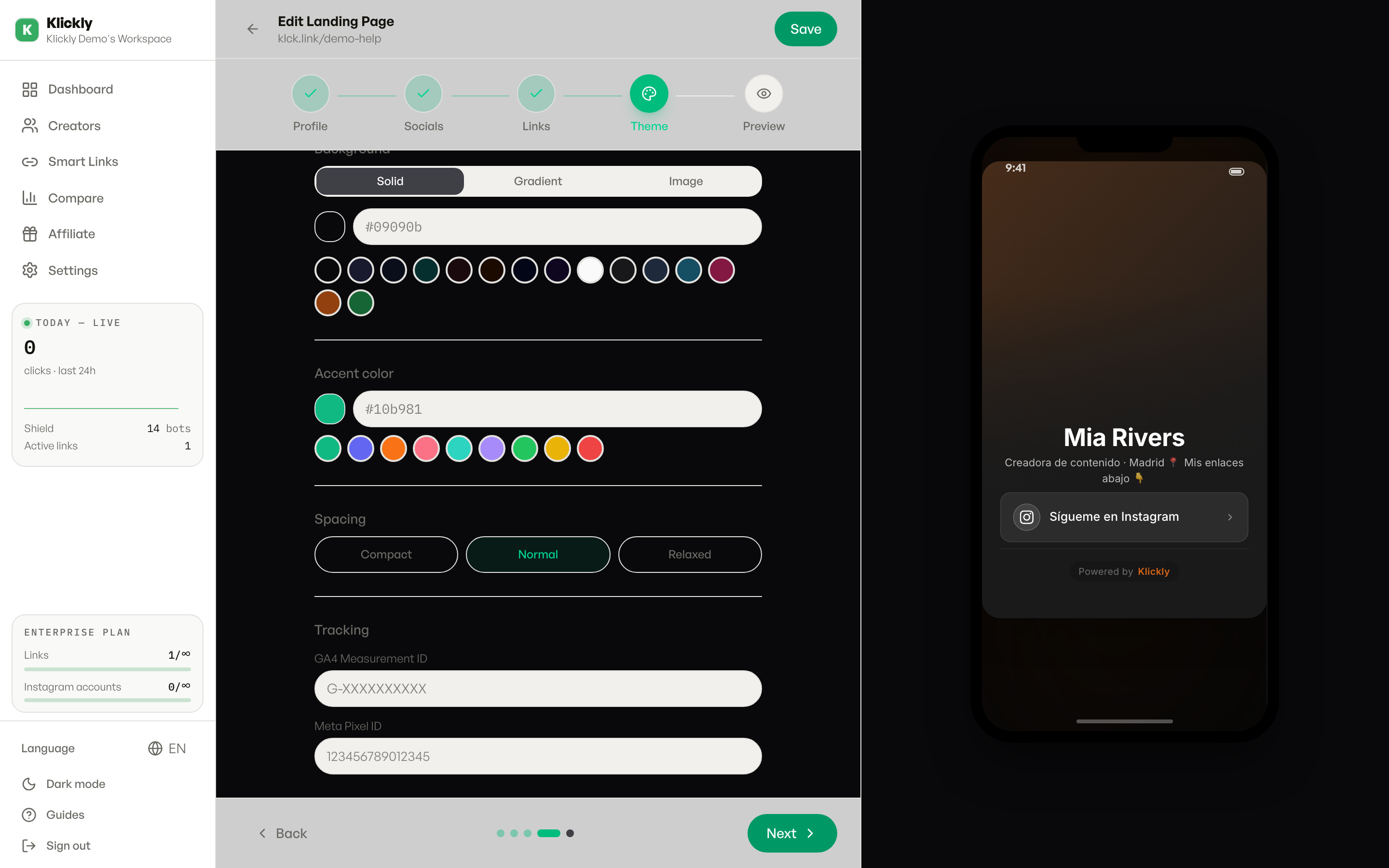
Tracking pixels are a paid feature, available on Pro, Agency and Scale. On Free and Individual the two fields appear locked (you'll see a small lock icon and a 'Pro' badge) and can't be filled in. Klickly's own click and visit analytics are always available regardless of plan — pixels just add YOUR external tracking on top.
- 1
Open the landing's editor
Go to Sidebar → Links, then open the landing you want to track (create a new one with Links → New, or use Edit on an existing link).
- 2
Expand the Advanced section
Scroll down to the 'Advanced' heading and click it to expand. Inside you'll find a 'Tracking Pixels' block at the top with two fields.
- 3
Paste your GA4 Measurement ID
In the 'GA4 Measurement ID' field, paste the ID from your Google Analytics 4 property. It looks like G-XXXXXXXXXX (the letter G, a dash, then letters and numbers). You can find it in Google Analytics under Admin → Data Streams → your web stream.
- 4
Paste your Meta Pixel ID
In the 'Meta Pixel ID' field, paste your Facebook/Meta Pixel ID. This is a long number only (no letters), e.g. 123456789012345. You'll find it in Meta Events Manager under your Pixel's settings.
- 5
Save the landing
Save the link. From the next visit onward, the page will load your tracking script(s) and report a PageView to your GA4 and/or Meta account. You can fill in just one of the two fields, both, or leave them empty — they're independent.
Tip
Format matters. The GA4 field only activates if the value starts with 'G-'; the Meta Pixel field only activates if it's all digits. If you paste a full snippet, a UA tracking ID (UA-...), or an ID with extra spaces, Klickly will skip it silently and nothing will be tracked. Paste only the bare ID.
Where the data goes
Pixels send data to YOUR Google Analytics and YOUR Meta account, not to Klickly. To actually see the numbers, open Google Analytics or Meta Events Manager — Klickly doesn't display GA4 or Meta data inside the dashboard. Both pixels fire a standard PageView on load; custom conversion events are something you'd configure on Google's or Meta's side.
Pixels and Shield
Pixels run in the visitor's browser when the page loads, the same way they would on any normal website. They don't change what bots and crawlers see, so they don't interfere with Shield. Keep in mind that, like on any site, visitors with ad blockers or strict privacy settings may not be counted — so your own pixel numbers can come in a bit lower than Klickly's built-in visit count.